Overview
This plugin lets you interact with your BMW or Mini vehicle equipped with Connected Drive services, just like the official “My BMW” or “Mini” app.
Tip
The minimum version of Jeedom required for the plugin to work properly is version 4.4 The plugin is already compatible with version 4.6 of Jeedom as well as Debian 12
Principle
This plugin interacts with the official BMW Connected Drive APIs via the cloud; therefore, this plugin requires an Internet connection.
You must also have a valid subscription to BMW Connected Drive services for your vehicle, as well as a valid primary user account for the “My BMW” or “Mini” app.
Setting Up Your BMW or Mini User Account
Before you can use the plugin, you must set up your BMW user account. Please follow these steps carefully:
- Log in to the BMW ConnectedDrive or Mini ConnectedDrive portal
- Click the BMW CarData icon

- Click the “Create a CarData Customer” button
- Make sure to copy your customer ID and keep it in a safe place!
- Please wait 30 seconds
- Click on “Request access to the CarData API”
- Wait 30 seconds (if the toggle does not switch back to “off” and you do not see an error message, you can continue; otherwise, you must repeat this step)
- Click on “CarData Streaming”
- Wait 30 seconds (if the toggle does not switch back to “off” and you do not see an error message, you can continue; otherwise, you must repeat this step)

- Go to the CarData Stream section
- Verify that the connection status is “ready”
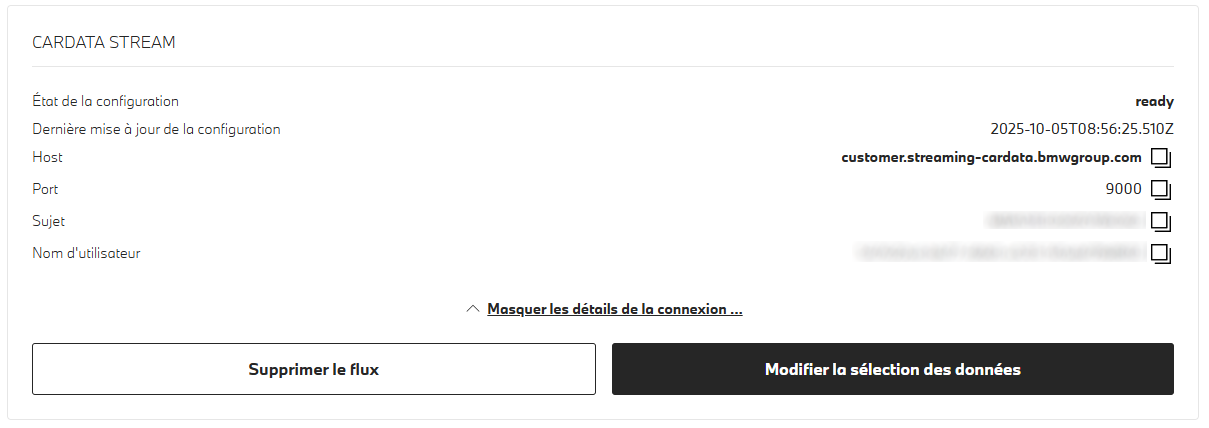
- Click the “Edit Data Selection” button
- Select “All Categories” (Vehicle Status, Charging, Trip Data, etc.), then click the Load button several times to display all attributes
-
Select the 244 individual attributes manually, or press F12 to open the developer console and type: (copying and pasting is not allowed)
document.querySelectorAll('label.chakra-checkbox:not([data-checked])').forEach(l => l.click()); - Then save your configuration
- Make sure to write down the username somewhere safe!
Important
It is important that all attributes be checked in order to receive all vehicle data.
Plugin Configuration
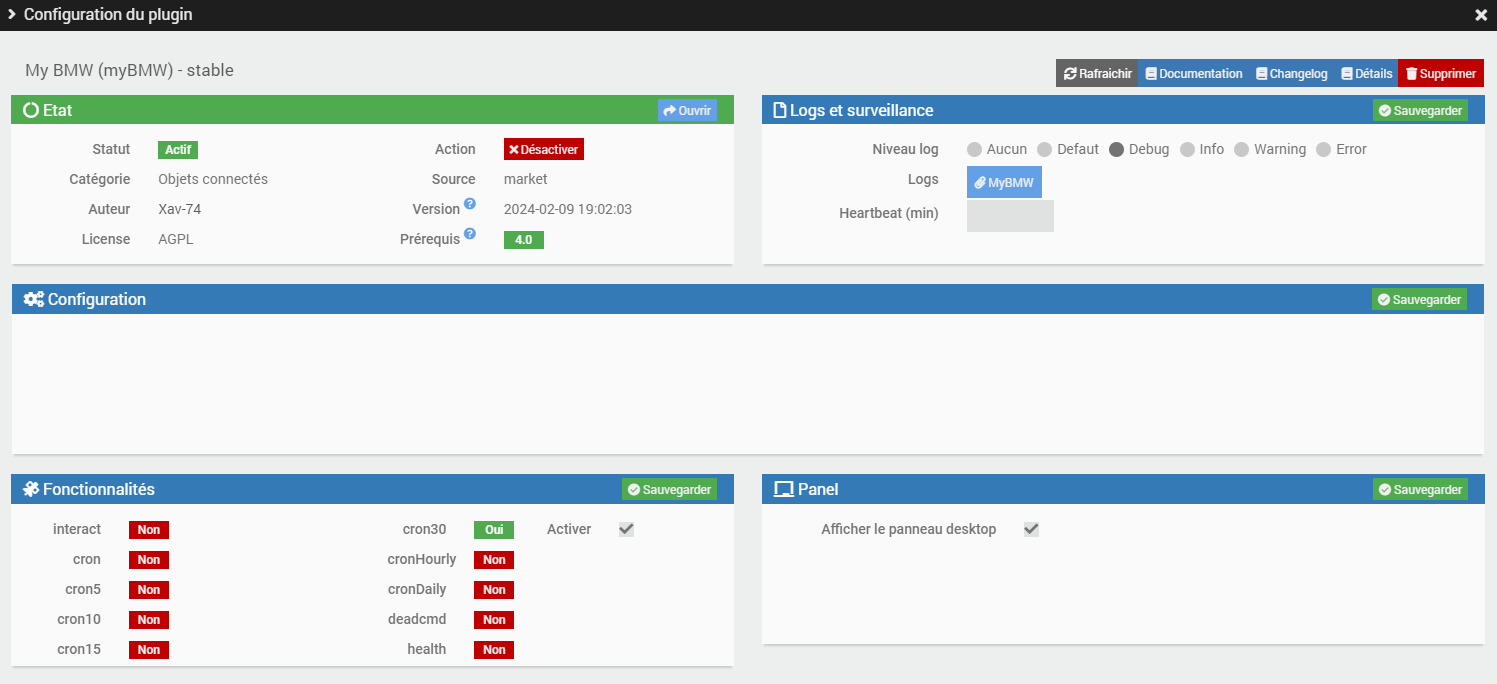
After downloading the plugin, simply activate it, then configure the client ID and username you obtained in the previous step. Leave the other fields blank unless specifically instructed to fill them in by the developer. Then wait for the dependencies to finish installing and for the daemon to start.
Tip
To make it easier to request remote assistance, we recommend setting the logs to debug mode.
Add a vehicle
You can configure MyBMW devices from the Plugin > Connected Devices menu.
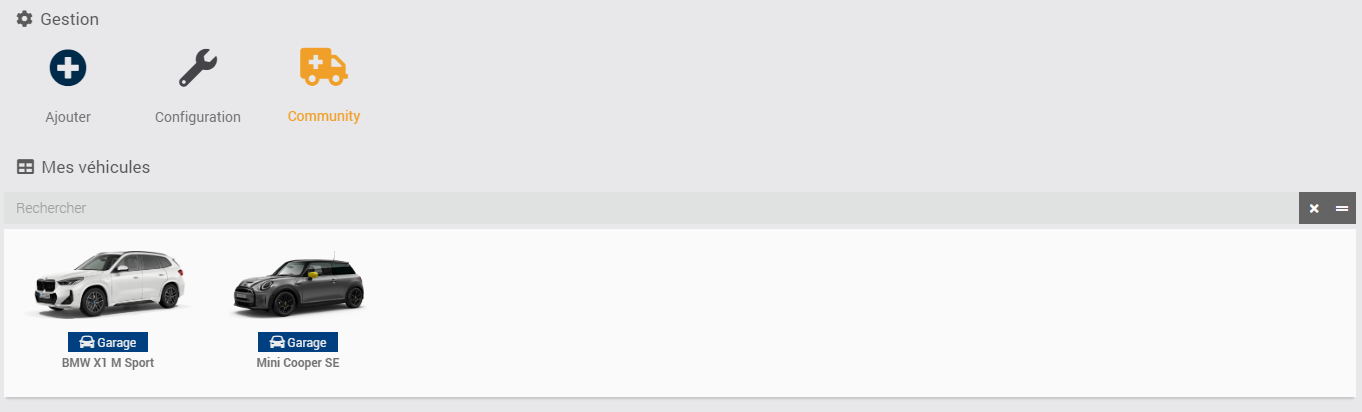
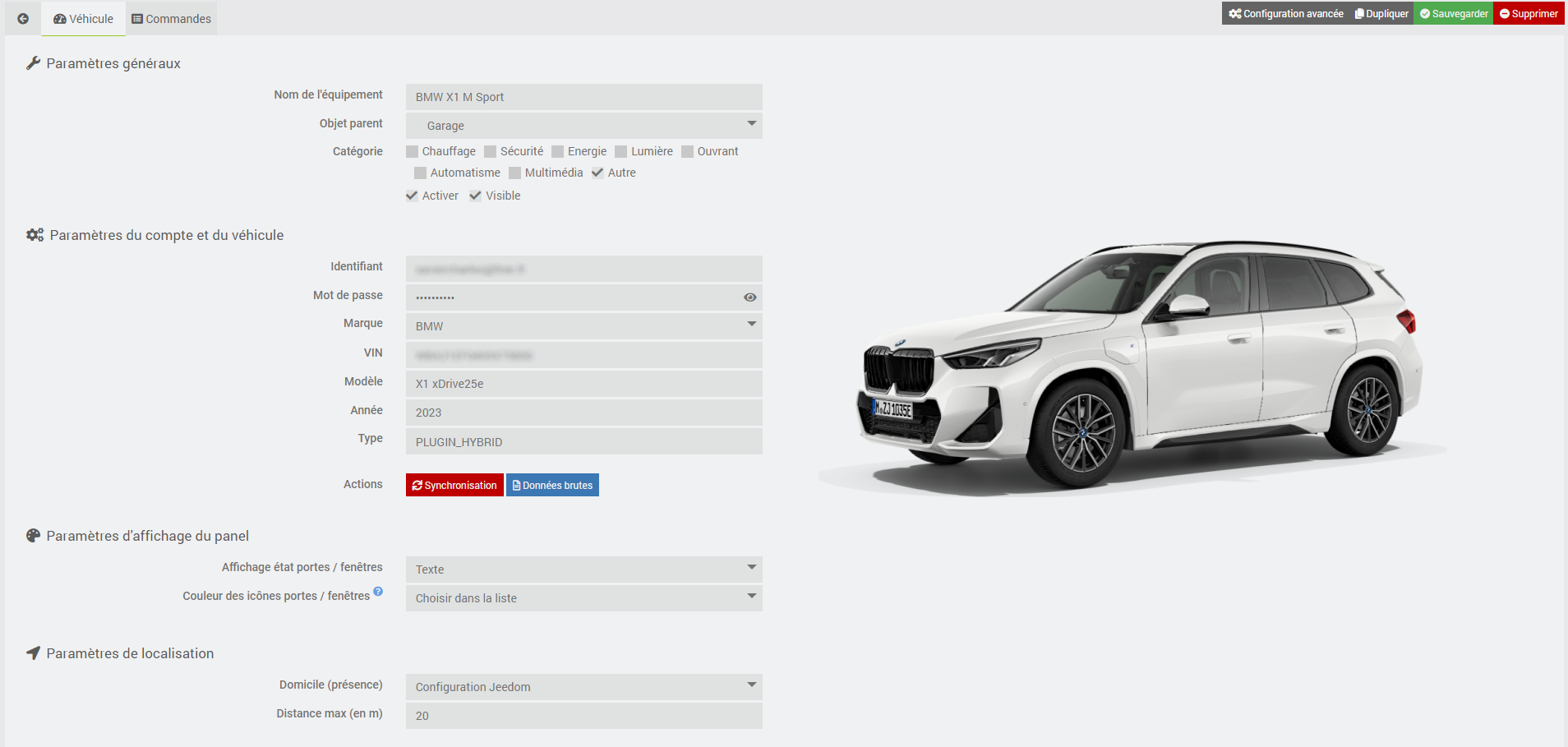
Click the Add command to create a new vehicle. Once added, you will see:
| Field | Description |
|---|---|
| Device Name | your vehicle’s name |
| Parent object | indicates the parent object to which the device belongs |
| Category | equipment category |
| Activate | turns your device active |
| Visible | makes your devices visible on the dashboard |
| Make | Enter your vehicle’s make (BMW or Mini) |
| VIN | Enter the VIN, or Vehicle Identification Number. You can find this number in box E of your vehicle registration certificate. This number consists of 17 characters. |
| Door/Window Status Display | You can choose between two options for displaying the status of doors and windows on the panel: text mode or icon mode. |
| Port/Window Icon Colors | If you’ve selected icon mode, you can also choose the color of the icons (green or black & white). |
| Home (presence) | You have three options for specifying the GPS coordinates of your home: either by using the coordinates entered in Jeedom, by using the vehicle’s current coordinates, or by manually entering the latitude and longitude. |
| Maximum Distance (in m) | Enter the maximum distance in meters between your home and the vehicle for the vehicle to be considered present at your home. |
Then simply click the Authentication button to retrieve your vehicle’s information (if available, you’ll see the model, year, engine type, and an image of your vehicle). A pop-up window will open (Be mindful of your browser’s pop-up blocker; disable it if necessary) so you can log in using your BMW account credentials (email and password). You have 5 minutes to do this, and you should see a “Login Successful” message when you’re done.
Tip
Don’t forget to save your information! When you save, new commands will be created on the device.
Raw data
To make troubleshooting easier in case of a problem, you can retrieve your vehicle’s raw data by clicking the Raw Data button. Please note: Before posting this data on the forum, for example, be sure to hide sensitive information such as the VIN!
Commands
There are currently several commands, which are described below.
Tip
If the command returns “not available,” it means that the corresponding information is not available for your vehicle.
Info
| Command | Description |
|---|---|
| Brand | the vehicle’s brand (BMW or Mini) |
| Model | vehicle model |
| Year | vehicle year |
| Type | electric, thermal, or hybrid |
| Mileage | total vehicle mileage |
| Locking | retrieves the vehicle’s lock status |
| Front Driver’s Door Status | the status of the front driver’s door |
| Rear Driver’s Port Status | the status of the rear driver’s port |
| Front Passenger Port Status | the status of the front passenger port |
| Rear Passenger Port Status | the status of the rear passenger port |
| Status of all doors | the overall status of the four doors |
| Front Driver’s Window Status | the status of the front driver’s window |
| Rear Driver’s Window Status | the status of the rear driver’s window |
| Front Passenger Window Status | the status of the front passenger window |
| Rear Passenger Window Status | the status of the rear passenger window |
| Status of all windows | the overall status of the four windows |
| Trunk Status | the condition of the trunk |
| Engine Hood Status | the status of the engine hood |
| Sunroof Status | the status of the sunroof |
| Front left tire pressure | the measured pressure of the front left tire |
| Front Left Tire Inflation Guidelines | the recommended inflation pressure for the front left tire |
| Front Right Tire Pressure | the measured pressure of the front right tire |
| Front Right Tire Inflation Guidelines | the recommended inflation pressure for the front right tire |
| Left rear tire pressure | the measured pressure of the left rear tire |
| Left Rear Tire Inflation Guidelines | the recommended inflation pressure for the left rear tire |
| Right Rear Tire Pressure | the measured pressure of the right rear tire |
| Right Rear Tire Inflation Guidelines | Recommended inflation pressure for the right rear tire |
| Charging Status | the current charging status (only for electric or hybrid vehicles) |
| Socket Status | the connection status of the charging cable (only on electric or hybrid vehicles) |
| Charge completion time | the estimated charge completion time (for electric or hybrid vehicles only) |
| Remaining Charge | the remaining battery charge level (only on electric or hybrid vehicles) |
| Remaining km (electric) | remaining electric range (electric and/or hybrid motor) |
| Remaining Fuel | the amount of fuel remaining in the tank (only on gasoline or hybrid vehicles) |
| Remaining km (internal combustion) | remaining range on internal combustion power (internal combustion engine) |
| Messages | displays the messages shown in the vehicle (controls and services) |
| Charging Sessions | displays statistics on battery charging for the current month (for electric or hybrid vehicles only) |
| Total electrical charge | shows the total electrical charge used during the current month (for electric or hybrid vehicles only) |
| Total electricity cost | shows the monthly cost of electricity |
| Charging Target | displays the configured electric charging target for the vehicle (in %) |
| Charging current limit | specifies the maximum charging current when the vehicle is plugged in |
| Charging Current Limit | provides information on whether a charging current limit is enabled or disabled for the vehicle |
| GPS coordinates | returns the vehicle’s location in the format “latitude,longitude” |
| Last Update | shows the date and time of the last connection between the car and the BMW servers |
| Unlock Status | returns the last status received during an unlock request. If the action was successfully completed, the status changes from “PENDING” to “EXECUTED.” Otherwise, it returns “ERROR” |
| Lock Status | the last status received during a lock request (same values as Unlock Status) |
| Charging Status | the last status received when a charge start request was made |
| Stop Charging Status | the last status received when a request to stop charging was made |
| Ventilation Status | the last status received when a request to start ventilation was made |
| Ventilation Stop Status | the last status received when a request to stop ventilation was made |
| Headlight Flash Status | the last status received during a headlight flash request |
| Horn Status | the last status received during a horn request |
| Status Search | the last status received during a location request |
| POI Send Status | the last status received when sending a point of interest |
| At Home | indicates whether your vehicle is at your home (1 = present, 0 = absent) based on the maximum distance specified |
| Distance from home | indicates the distance (in meters or kilometers) between the vehicle and your home |
Action
| Command | Description |
|---|---|
| Refresh | updates all vehicle information |
| Lock | allows you to lock the car remotely |
| Unlock | allows you to unlock the car remotely |
| Charge | starts charging the vehicle |
| Stop Charging | stops the vehicle from charging |
| Ventilation (Start) | starts the ventilation system at the temperature set in the vehicle |
| Ventilation (Stop) | stops the ventilation system at the temperature set in the vehicle |
| Headlight flash | triggers a headlight flash |
| Honk | triggers an audible alert |
| Search | locates the vehicle in real time and displays it on a Google Maps map |
| Send POI | Send a point of interest (POI) to the vehicle’s message center by entering the name, latitude, and longitude of the location |
Please note
As of now, only the Refresh function is operational. The other actions will be functional again once the BMW APIs allow it!
Dashboard
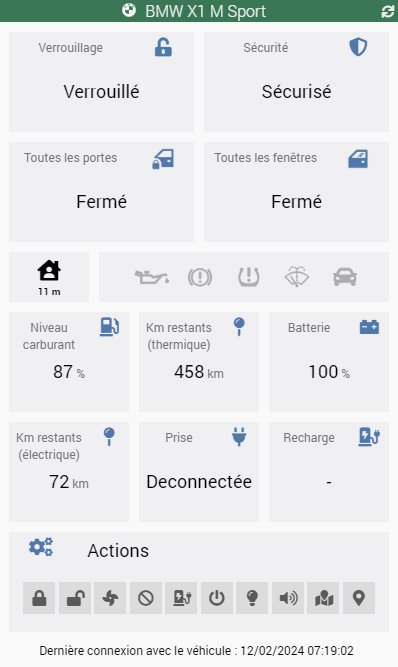
The plugin includes a custom widget that displays all the vehicle’s essential information.
Panel
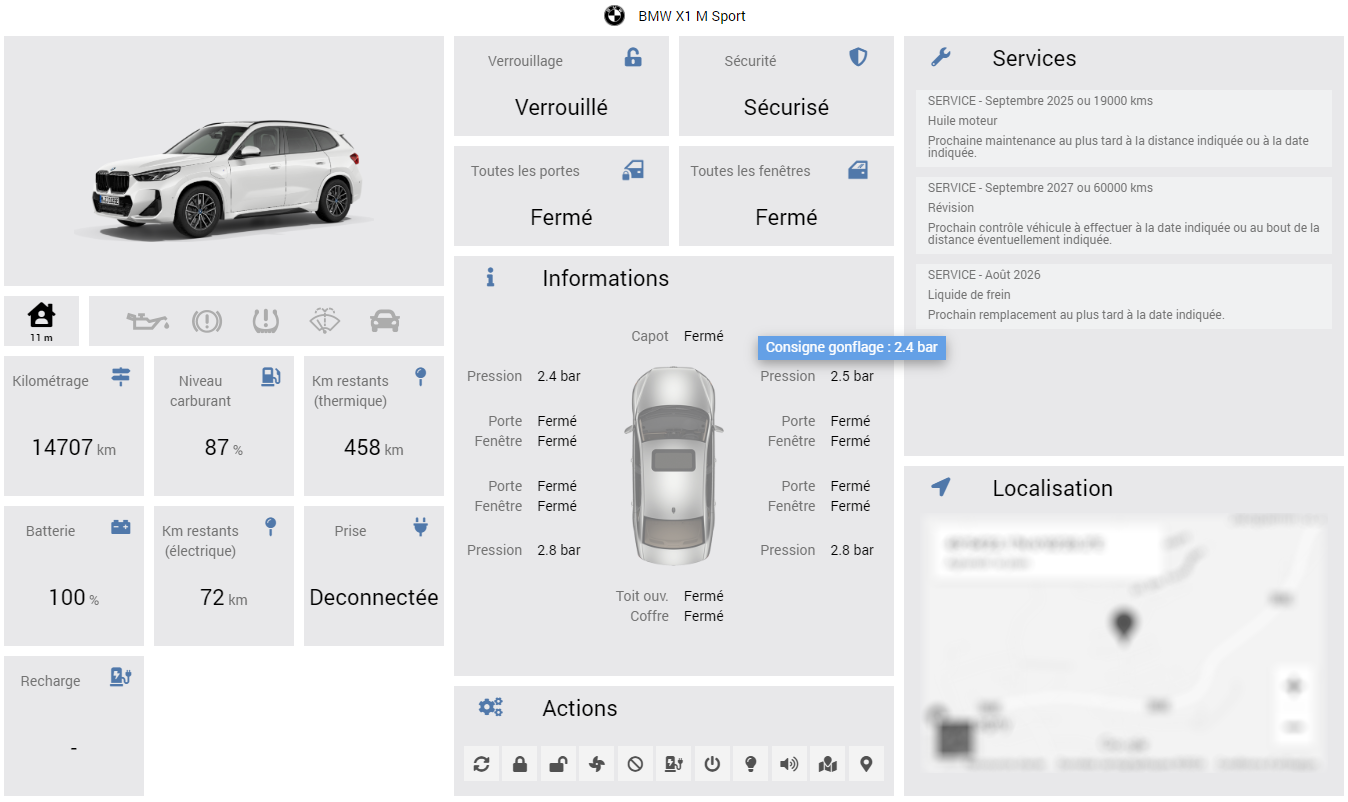
If you have checked the Show Desktop Panel option on the plugin’s configuration page, you will be able to view a panel dedicated to your vehicle that consolidates all the information available in this plugin. It can be accessed via the Home \ My BMW menu
Tip
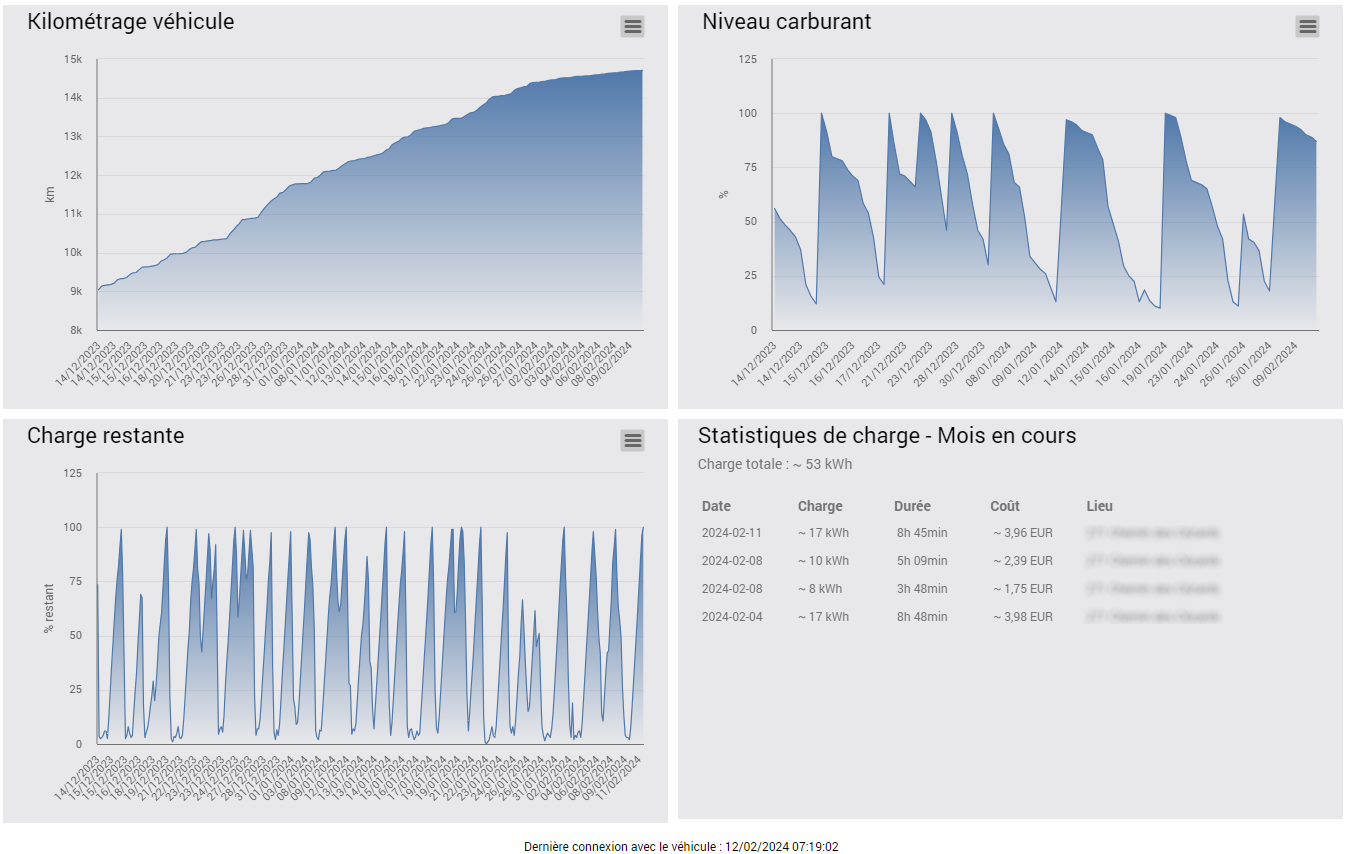
To display the graphs, be sure to check the Log option for the following three commands: Mileage, Remaining Charge, and Remaining Fuel.
Refresh
Automatic
Thanks to the MQTT stream, you receive most of your vehicle’s information in real time (mileage, fuel level, battery status, vehicle lock status, door and window status, location, etc.)!
A customizable CRON job is also created (set to run every 2 hours, 5 minutes past the hour) to retrieve non-streamable information (control messages, service messages, and charging history). Be careful not to increase this frequency too much, or you may exceed the request quota allowed by BMW (50 per day)!
Manual
You can use the Refresh command at any time to retrieve vehicle statuses.
Please note
BMW limits requests to 50 per day, so don’t manually refresh too often (the current CRON job uses 24 requests per day), or you risk being blocked until the next day.
Roadmap & Support
This plugin will evolve over time based on your requests and the capabilities of the BMW Connected Drive APIs.
Tip
You can submit a request for an enhancement by creating an “enhancement” issue on GitHub. Feel free to join the discussion about this plugin on the Jeedom Community!
If a problem occurs, you can create a thread directly on the Community from the plugin’s main page. Relevant information from Jeedom and the plugin is automatically included. Feel free to copy the myBMW, myBMW_daemon, and myBMW_update (debug mode) logs to help resolve the issue more quickly!