Overview
This plugin lets you track your packages from major French and international carriers (La Poste, Mondial Relay, Relais Colis, Colis Privé, AliExpress, Shein, Amazon, eBay, FedEx, UPS, etc.) via the 17Track API.
The free 17Track plan allows you to track 100 packages per month (resets to 0 on the first day of the month). If you wish, you can upgrade to a paid plan.
Tip
The minimum version of Jeedom required for the plugin to work properly is version 4.4 The plugin is already compatible with version 4.6 of Jeedom as well as Debian 12
Installation
The plugin installs just like any other plugin on Jeedom, via the Market.
Setup
- Once installed and activated, on the configuration page, you must enter the 17Track API key
- Visit the website www.17track.net
- Click No account and create a Developer account, or sign in with your existing credentials
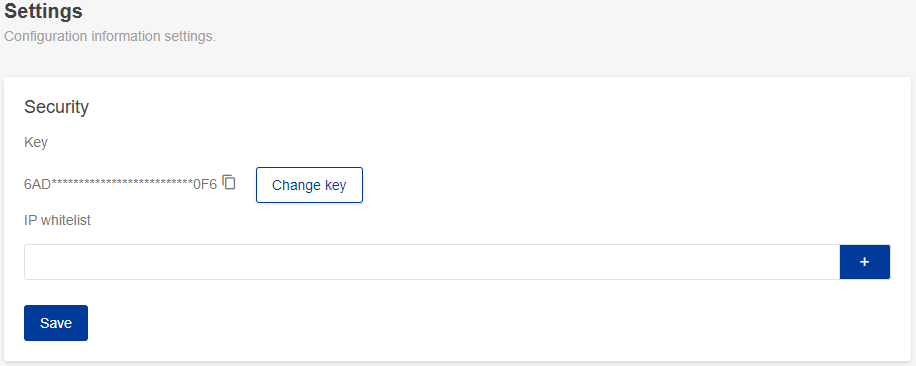
- Once you’re on your dashboard, go to the Settings menu and copy the API key
- Paste the API key into the plugin’s settings
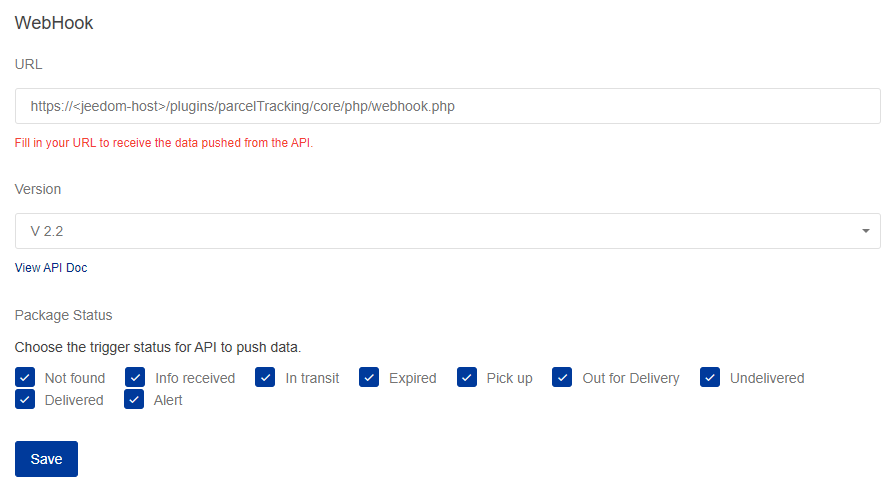
- Also fill out the Webhook section as follows: (“jeedom-host” is the external address of your device)
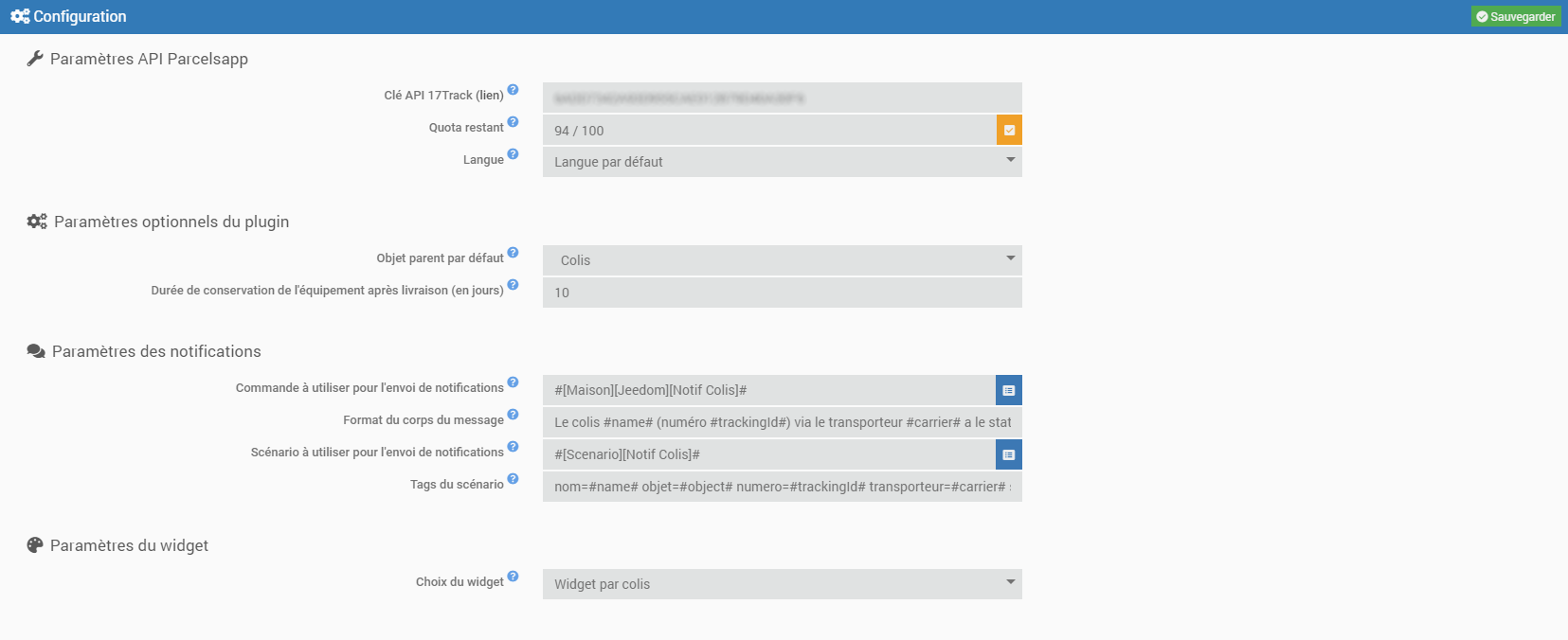
- You can check how many tracking sessions are left in your quota by clicking the Check button
- Select the language to be used for API responses. Please note that if you choose a language other than the default, this will count as 2 tracking requests per package against your quota
- You can update the list of carriers and the list of additional settings. By default, they will be updated daily during the daily cron job.
- Enter the plugin’s optional settings:
- Default parent object ==> Automatically add the specified object when creating new trackers
- Equipment retention period after delivery (in days) ==> Automatic removal of the equipment X days after delivery
- Enter your notification settings if you want to be notified whenever the status changes
- The first two lines concern sending notifications via a message-type action command
Option: You can customize the message using the following tags: #name#, #trackingId#, #carrier#, #status#, #lastState#, #date#, and #time#
You can test whether it’s working properly by sending a test notification - The last two lines pertain to sending notifications via a scenario
You can use the following tags: #name#, #object#, #trackingId#, #carrier#, #status#, #lastState#, #date#, and #time#
Here’s how they work: tracked_name=#name#, where tracked_name is the tag name and #name# is the tag value
- Enter the widget settings. There are 3 options:
- No widgets (you’ll only receive notifications)
- One widget per package
- A single widget for all packages
- Back up
Tip
To make it easier to request remote assistance, we recommend setting the logs to debug mode.
Usage
- Launch the plugin located in the Organization category of the Plugins menu
- Add a package, just like any other device in Jeedom
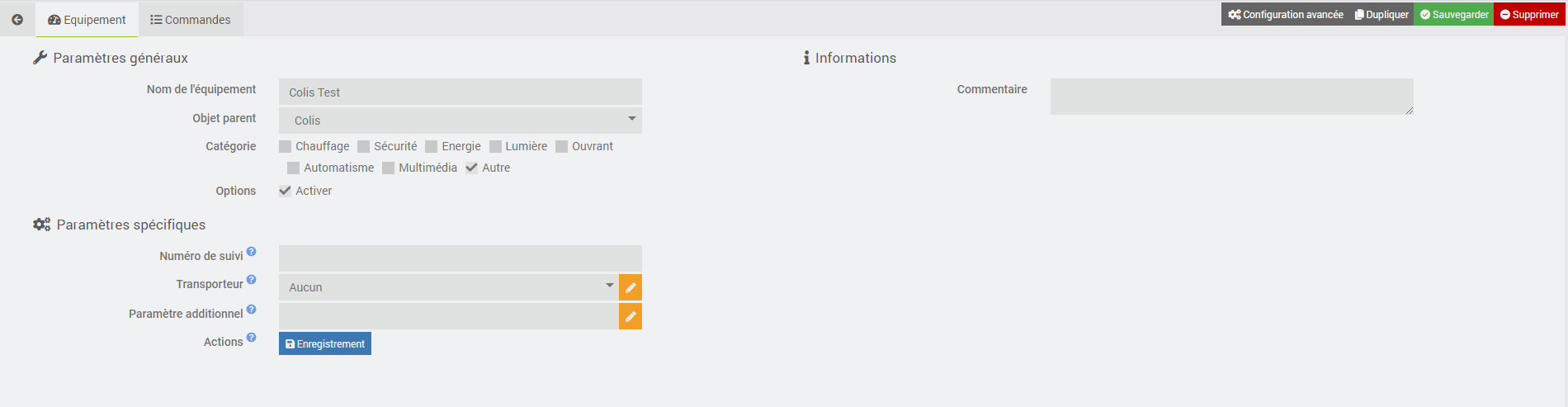
- Enter the name of your package, then provide the tracking number, the carrier (if known), and any additional tracking parameters required for the selected carrier. The list of carriers comes directly from 17Track and will be updated regularly. If an additional parameter is required for the selected carrier, a note will appear to alert you and specify the expected format.
- Save, then start a tracking so that the package is registered by the 17Track API, and make sure the action is successful (green notification)
Tip
If, after the first successful registration, you need to change the carrier and/or the additional parameter, you can do so using the update buttons. Please note that sometimes, after updating one of these two parameters, the tracking information may not be updated immediately. Please wait 1 to 2 hours. After this time, it is best to delete the package and recreate it with all parameters updated from the very first entry
Commands
There are currently several commands, which are described below.
Tip
If the command returns “unavailable,” it means that the corresponding information is not available in the package tracking system.
Info
| Command | Description |
|---|---|
| Package Status | 5 possible statuses (delivered, in transit, pickup, arrived, archived) |
| Carrier | name of the primary carrier |
| Origin | country of origin of the package |
| Destination | country of destination for the package |
| Stages | list of all delivery stages |
| Latest Event | Date and time of the latest event sent by the carrier. Used for sending notifications |
| Latest Status | Latest status sent by the carrier. Used for sending notifications |
| Delivery Date | available only after the package has been delivered |
Action
| Command | Description |
|---|---|
| Refresh | updates all package information |
Dashboard
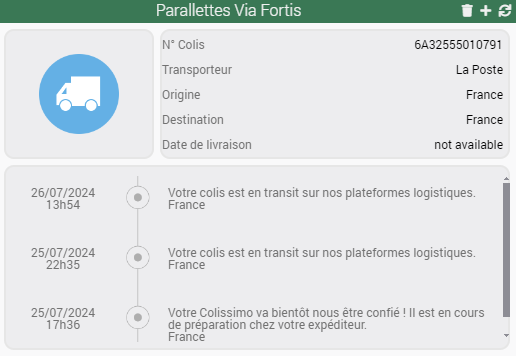
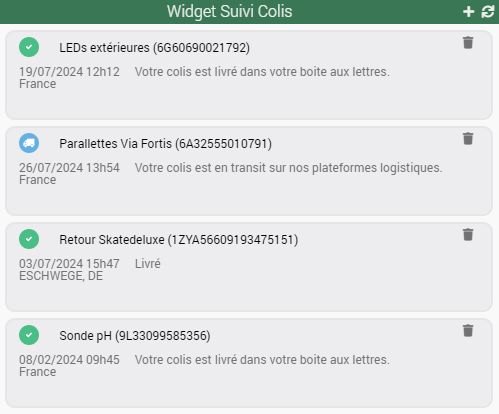
The plugin includes two custom widgets that display all package information. You can choose either:
- one widget per package
- a single widget for all packages
- the widgets above running in parallel
In any case, you can delete packages (icon  ) or add a new one (icon
  ) directly from the widgets.
Please note
The single widget is visible on the plugin’s devices page. Under no circumstances should it be deleted. If it is deleted by mistake, simply force a reinstallation of the plugin (no data will be lost), and it will be recreated.
Refresh
Automatic
As indicated on the plugin’s configuration page:
- A CRON job is automatically created on a daily basis (at 12:00 a.m.) to automatically delete packages
Regarding package updates, the webhook retrieves information from 17Track in real time.
Manual
You can use the Refresh command at any time to update the package information.
Roadmap & Support
This plugin will evolve over time based on your requests and the capabilities of the 17Track APIs.
Tip
You can submit a feature request by creating an “enhancement” issue on GitHub. Feel free to join the discussion about this plugin on the Jeedom Community!
If a problem occurs, you can create a thread directly in the Community from the plugin’s main page. Relevant information from Jeedom and the plugin is automatically included. Feel free to copy the parcelTracking logs (debug mode) as well to help resolve the issue more quickly!