Overview
This Jeedom plugin lets you interact with your Verisure Europe (Securitas Direct) alarm system just like the official “My Verisure” app. It is compatible with three generations of Verisure devices.
Important
THIS PLUGIN IS IN NO WAY AFFILIATED WITH OR LINKED TO THE COMPANIES OF THE SECURITAS DIRECT - VERISURE GROUP.
This plugin is intended for strictly personal and private use. Consequently, the developer neither endorses nor condones any inappropriate use, and assumes no legal liability for the functionality or safety of your alarms and devices.
Tip
The minimum version of Jeedom required for the plugin to work properly is version 4.4 The plugin is already compatible with version 4.6 of Jeedom as well as Debian 12
Principle
This plugin interacts with the Verisure APIs via the cloud; therefore, this plugin requires an Internet connection.
You must also have a Verisure service subscription. This plugin communicates with your alarm system’s control panel only through Verisure’s cloud infrastructure. It does not interact directly with the control panel or with the associated devices. If your subscription has been canceled, this plugin will not work.
Plugin Configuration
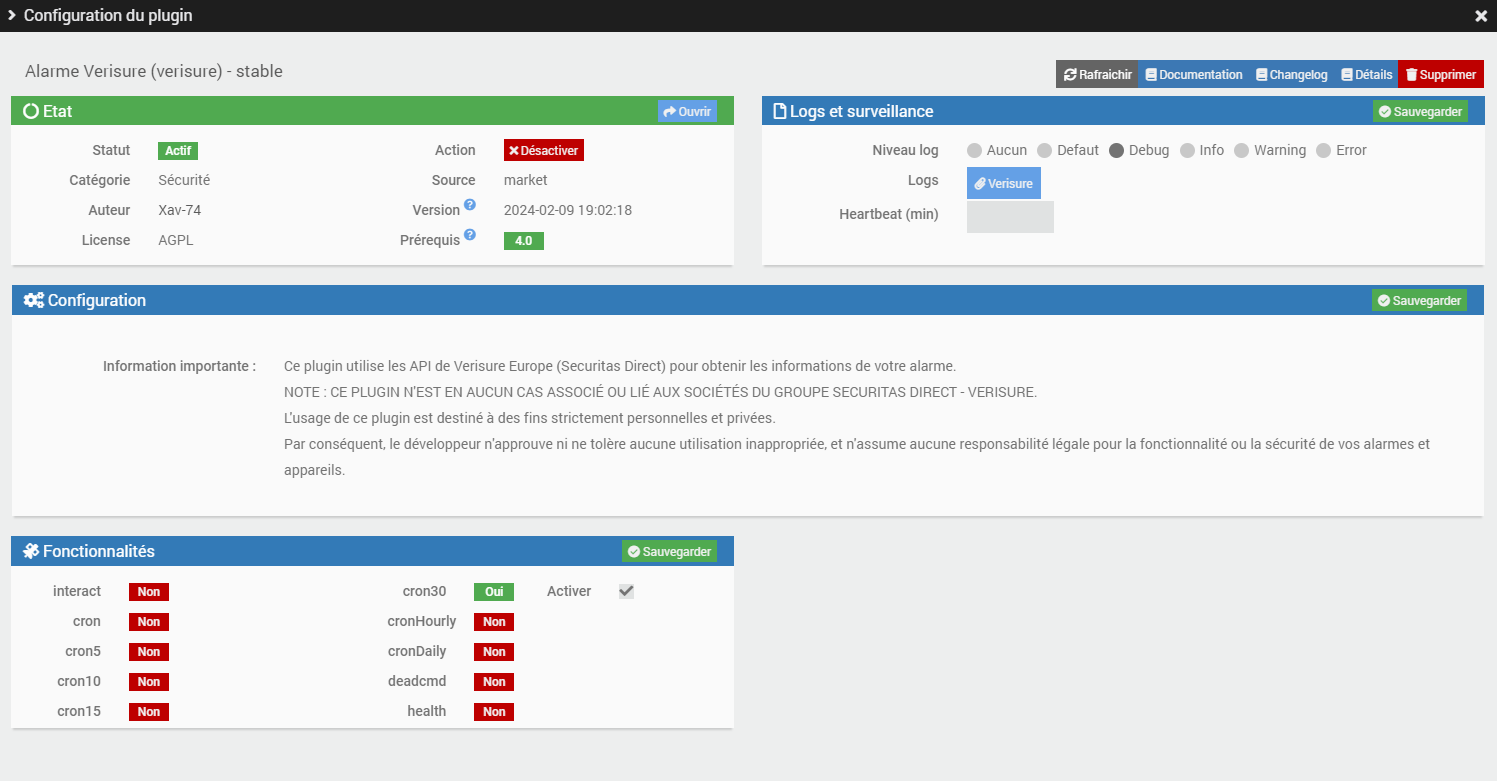
After downloading the plugin, simply activate it. If you have a Type 1 or Type 3 alarm, you can enable (and disable) a custom cron job to refresh your alarm’s information based on the history of actions. Be sure to enable this option in your device’s settings.
Tip
To make it easier to request remote assistance, we recommend setting the logs to debug mode.
Adding an Alarm
You can configure the Alarm devices from the Plugin > Security menu.
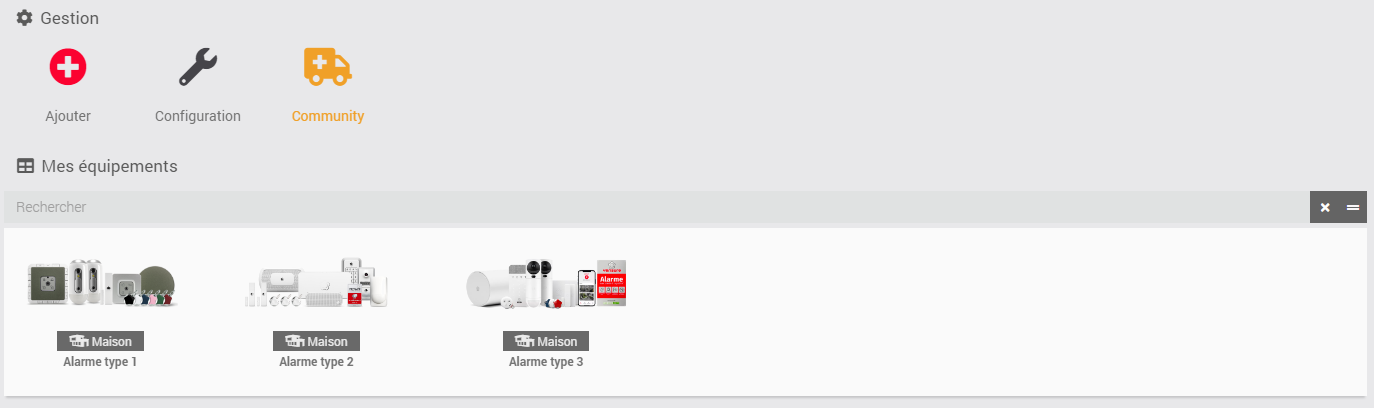
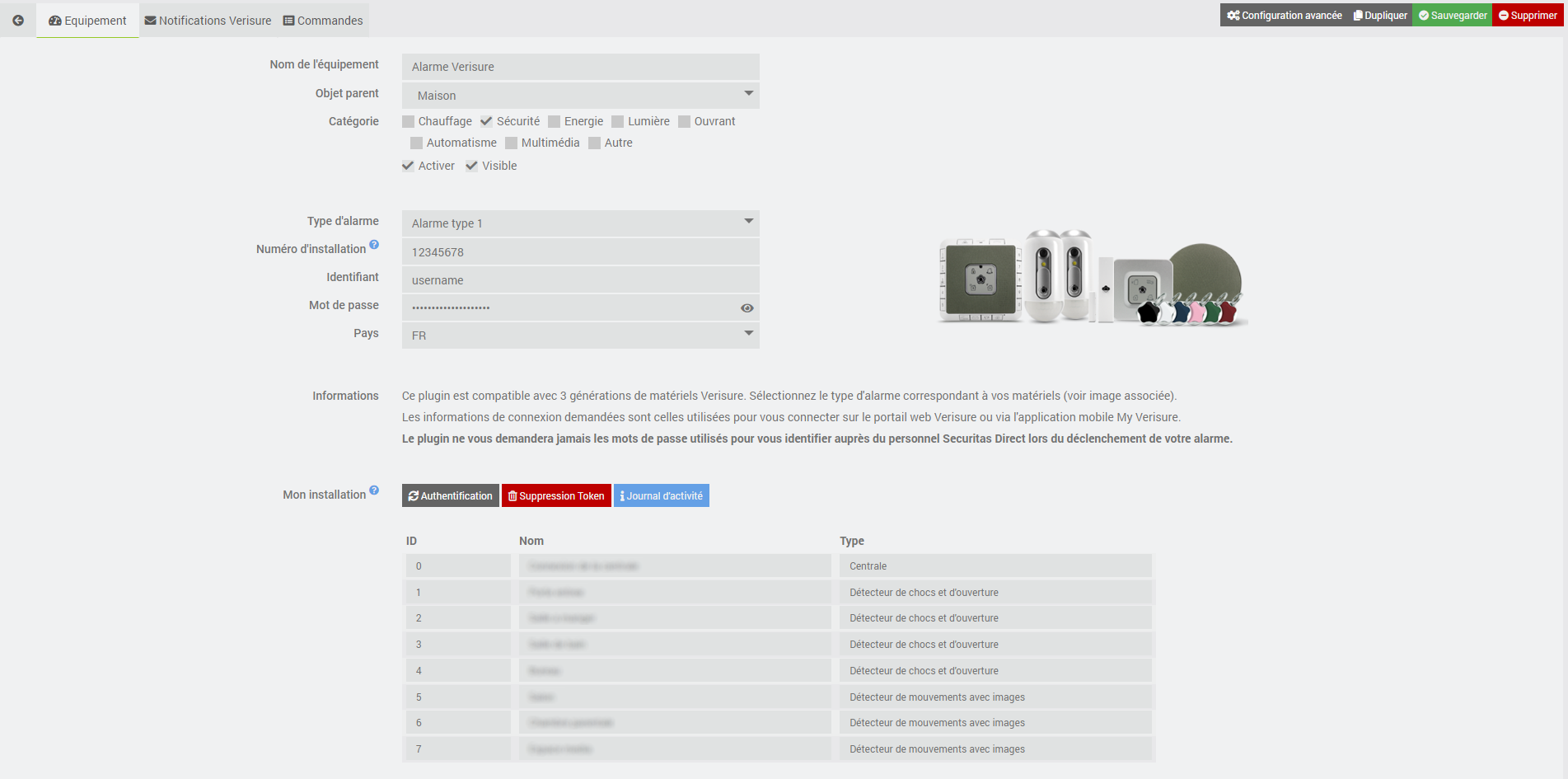
Click the Add command to create a new alarm. Once added, you’ll see:
| Field | Description |
|---|---|
| Device Name | name of your alarm |
| Parent object | indicates the parent object to which the device belongs |
| Category | the category of the equipment (general security for an alarm) |
| Activate | turns your device active |
| Visible | makes your devices visible on the dashboard |
| Alarm Type | Select your alarm type (Type 1 = Southern Europe (France, Spain, etc.) / Type 2 = Northern Europe (Belgium, UK, etc.) / Type 3 = Next-generation (since 2022)) |
| Installation Number (Alarm Types 1 & 3) |
Enter your Verisure installation number. Important! This number must match exactly the one displayed in your My Verisure app. If your installation number starts with a 0 but that 0 isn’t shown in the app, delete it! |
| Username (Alarm Types 1, 2, & 3) |
Enter the Verisure ID you use to log in to the website https://customers.securitasdirect.fr or https://mypages.verisure.com/ |
| Password (Alarm Types 1, 2, & 3) |
Enter your password |
| Alarm Code (Type 2 alarm) |
Enter your alarm’s PIN (4 or 6 digits) |
| Country (Alarm Types 1 & 3) |
Select the country where your alarm is installed (currently supported countries: France, Spain, Great Britain, Italy, Portugal). For Type 2 alarms, the country is selected automatically (countries currently supported: Belgium, the Netherlands, Germany, Great Britain, Denmark, Finland, Norway, Sweden) |
Options (Alarm Types 1 & 3): Depending on your alarm type, you can select the following options:
| Option | Description |
|---|---|
| Refresh via history (alarm types 1 & 3) |
allows you to update alarm statuses based on the history of actions. Be sure to set up and enable the cron job in the plugin’s configuration |
| Outdoor Alarm (Type 3 alarm) |
Check this box if you have outdoor sensors and if outdoor mode is enabled on your alarm |
| Forced Arming (Type 3 alarm) |
allows you to force the alarm to activate even if a port or window has been left open. Use at your own risk! |
Then simply click the Authentication button to retrieve your alarm system’s information. If everything goes well, you’ll see a table listing all the devices installed in your home (ID, name, and type).
Please note
We strongly recommend creating a dedicated user for Jeedom with “administrator” privileges in your Verisure account. The plugin supports multi-factor authentication (MFA) for Type 1 alarms. This is also the case for Type 2 alarms, but we recommend disabling this option for now because the token refresh process is very restrictive. If you encounter connection issues, the Delete Token button allows you to delete the stored cookies and restart the authentication process from the beginning.
Tip
Don’t forget to save your information! When you save, new commands will be created on the device.
Activity Log
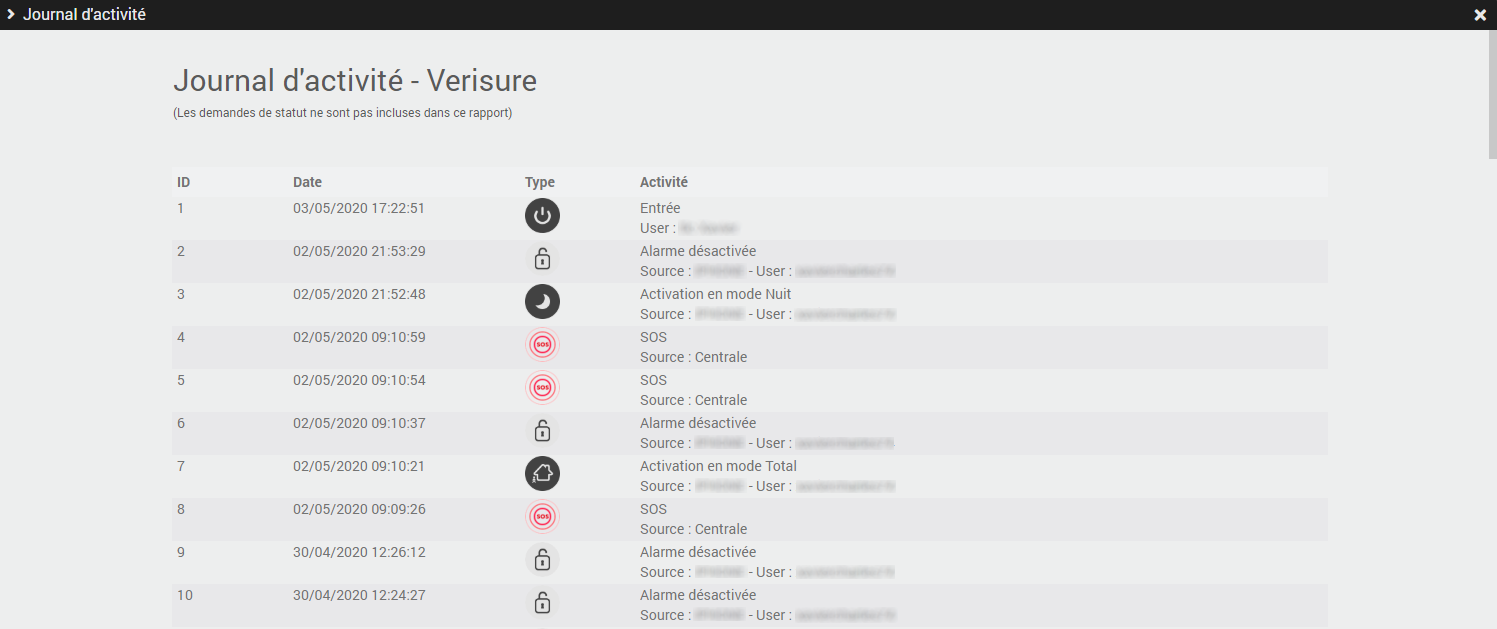
You can view your alarm system’s activity log by clicking the Activity Log button. This report lists the most recent events that have occurred on your control panel (intrusion alerts, SOS alerts, arming/disarming, power outages).
Verisure Notifications
Verisure APIs do not support direct, automatic information feeds or notifications, such as arming or disarming the system using a key fob or remote control, or triggering the alarm. This tab provides detailed instructions on how to configure Jeedom (scenarios) to address this shortcoming for:
- Email notifications for arming/disarming the alarm via Lunarok’s Mail Listener plugin!
- SMS notifications for arming/disarming the alarm via the SMS plugin from Jeedom SAS!
Commands
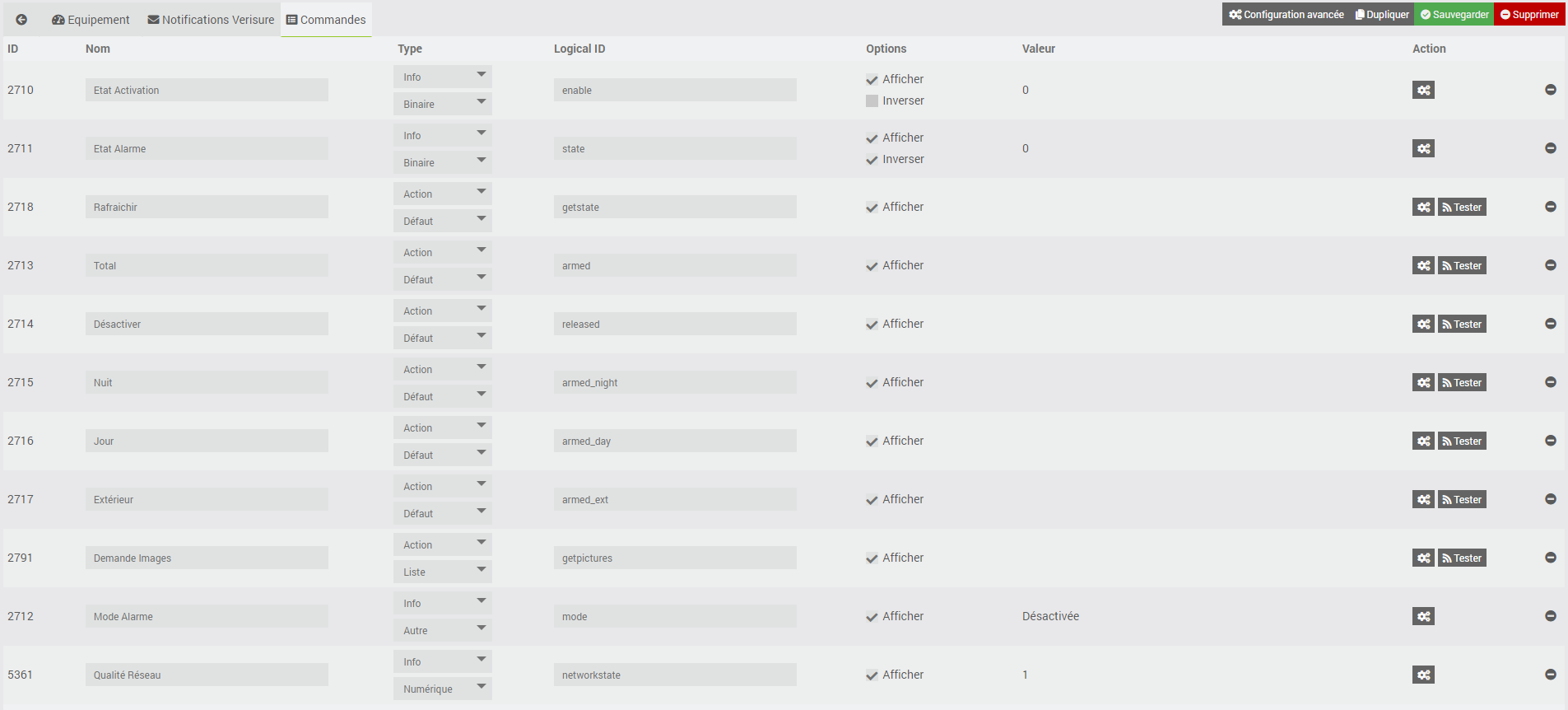
There are currently several commands, which are described below.
Info
| Command | Description |
|---|---|
| Activation Status | shows the alarm’s activation status 0: disarmed 1: armed |
| Alarm Status | shows the alarm status 0: normal status 1: alarm triggered |
| Alarm Mode | shows the alarm activation mode Full Mode: the alarm is activated in full mode (alarm types 1, 2, and 3) Night Mode: the alarm is activated in night mode (alarm type 1) Day Mode: the alarm is activated in day mode (alarm type 1) Outdoor Mode: the alarm is activated in outdoor mode (alarm type 1) Partial Mode: the alarm is activated in partial mode (alarm types 2 & 3) |
| Network Quality | Estimates the 3G/4G network quality for type 1 & 3 alarms (based on the results of the last 25 requests) 5-bar icon: no failed requests among the last 25 4-bar icon: 1 to 2 failed requests among the last 25 3-bar icon: 3 to 7 failed requests among the last 25 2-bar icon: 8 to 17 failed requests among the last 25 1-bar icon: 18 to 24 failed requests out of the last 25 0-bar icon: 25 failed requests out of the last 25 |
Please note
In this version, the event related to the alarm triggering is not yet supported!
Action
| Command | Description |
|---|---|
| Full Mode | makes the alarm active in full mode (alarm types 1, 2, and 3) |
| Night Mode | makes the night mode alarm active (type 1 alarm) |
| Day Mode | makes the day-time alarm active (type 1 alarm) |
| Away Mode | makes the alarm active in away mode (type 1 alarm) |
| Partial Mode | makes the alarm active in partial mode (type 2 & 3 alarms) |
| Deactivation | deactivates the alarm, regardless of the mode (alarm types 1, 2, and 3) |
| Refresh | updates the alarm status (alarm types 1, 2, and 3) |
| Request Images | triggers a photo to be taken by a compatible motion detector and displays it on the screen (alarm types 1, 2, and 3) |
Please note
Commands may sometimes take several seconds to complete (between 15 and 25 seconds, or even more than a minute for photo requests). This depends on the quality of the 3G or 4G connection at your alarm base station. So please be patient!
Tip
When an image is requested, the photo is saved and stored in the /verisure/data/ directory. Be sure to clear out the directory from time to time!
Homebridge compatibility
The commands have been designed to be natively compatible with Nebz’s Homebridge plugin! (Thanks to him for his help.)
Therefore, there is no specific configuration required in the Homebridge plugin. In HomeKit, the alarm feature is managed in four modes: “Off,” “Night,” “Away,” and “Home.”
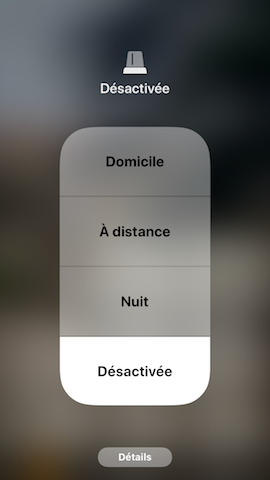
The mode mappings are as follows:
| HomeKit | Verisure Plugin |
|---|---|
| Home | Day Mode / Partial Mode |
| Remote | Full Mode |
| Night | Night Mode |
| Disabled | Disable |
Other modes (Outdoor, etc.) are not supported by HomeKit.
Type 2 alarm devices
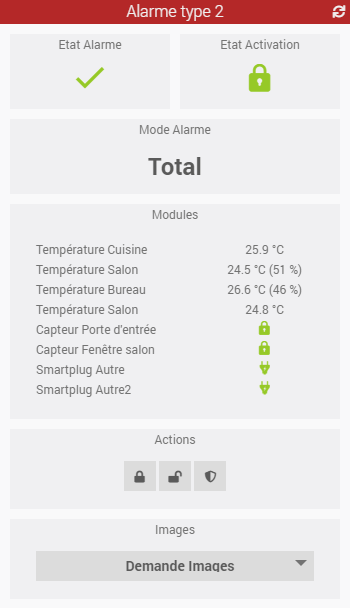
For Type 2 alarms (and only Type 2!), the plugin will create the commands associated with the alarm’s devices:
| Device | Commands created |
|---|---|
| Smart Plug | status / on / off |
| Compatible sensors | temperature / humidity |
| Door/Window Sensor | status (open/closed) |
By default, commands are not displayed on the widget. The goal is to then create a virtual device for each sensor. This will allow you to retrieve information on the open/close status, temperature, and humidity from the various sensors, or even remotely control Verisure-connected outlets from Jeedom.
Please note
Status updates are not real-time (currently impossible due to Verisure). You’ll need to refresh the alarm status via a scenario to update them or wait for the cron30. Customization of the cron interval (5, 10, 15, 30…) will be available at a later date. Be careful, however, not to send too many requests to the Verisure servers, or you risk being blacklisted.
Type 3 alarm devices
For Type 3 alarms (and only Type 3!), the plugin will create the commands associated with the alarm’s devices:
| Device | Commands created |
|---|---|
| Smart lock | status / open / closed |
Dashboard
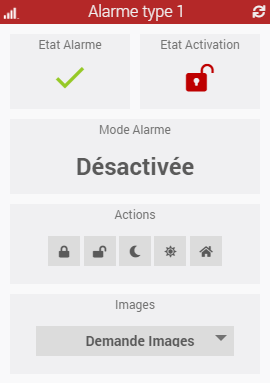
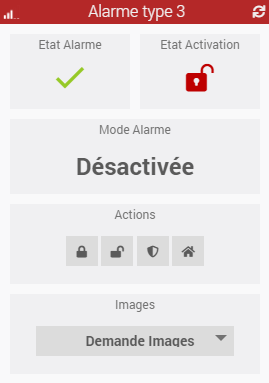
The plugin includes a widget specific to each type of alarm.
Refresh
Automatic
A CRON job is automatically created with a 30-minute interval, as specified in the plugin’s configuration.
Please note
This 30-minute value may change based on user feedback and requests, as well as the number of requests Verisure allows per hour on its servers!
Manual
You can use the Refresh command at any time to refresh the alarm status.
Roadmap & Support
This plugin will evolve over time based on your requests and the capabilities of the Verisure APIs.
Tip
You can submit a request for an enhancement by creating an “enhancement” issue on GitHub. Feel free to join the discussion about this plugin on the Jeedom Community!
If a problem occurs, you can create a thread directly on the Community from the plugin’s main page. Relevant information from Jeedom and the plugin is automatically included. Feel free to copy the Verisure logs (debug mode) as well to help resolve the issue more quickly!